

Dashboard
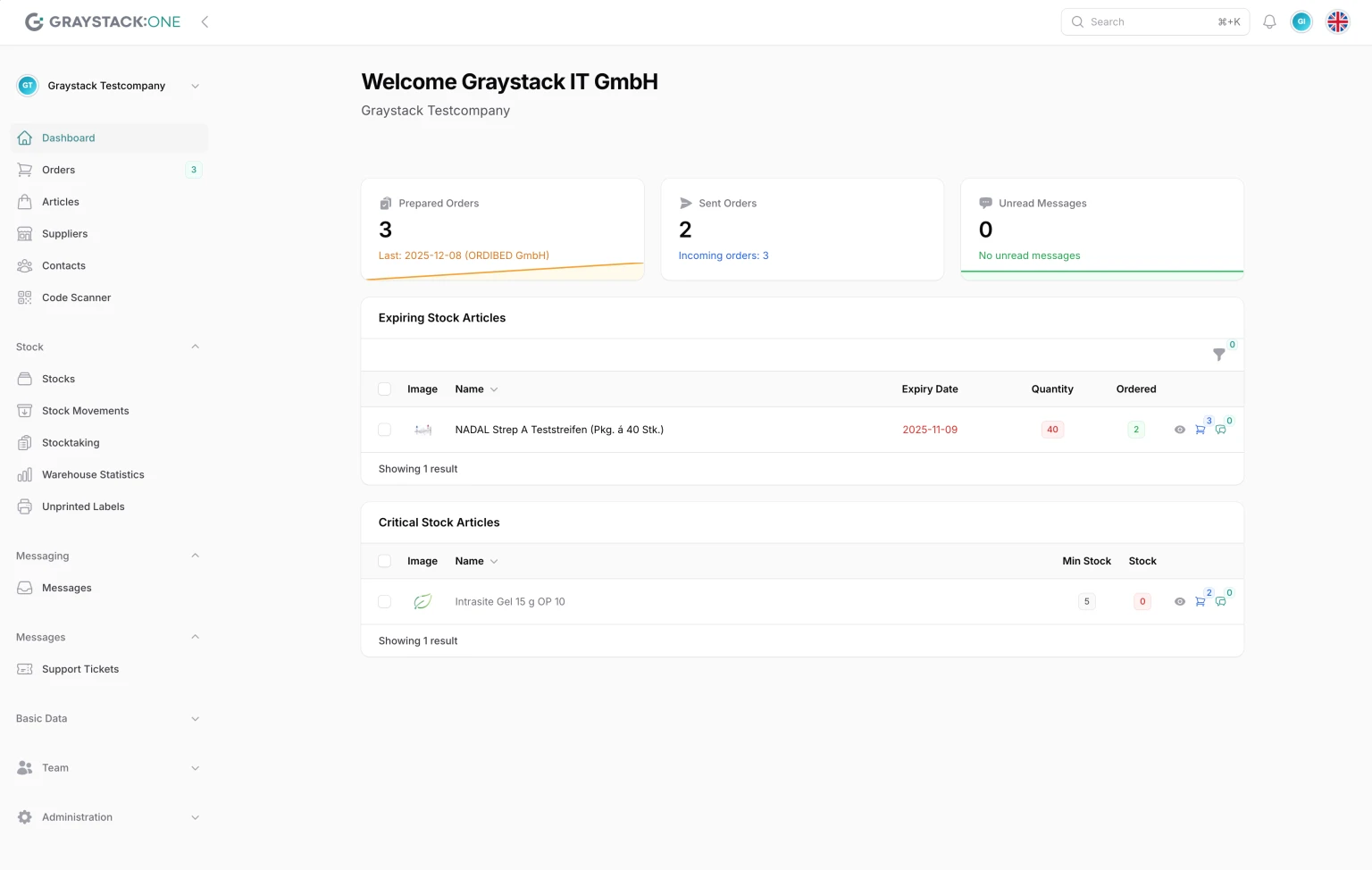
The dashboard is your central hub in Graystack:One. After logging in, you will be taken directly to the dashboard, which provides you with an overview of articles and features to note.
Title bar
The title bar is located at the top of the application and provides quick access to important features.
Global search
The global search is located on the right side of the title bar:
Click in the search field or use the keyboard shortcut ⌘+K (Mac) or Ctrl+K (Windows/Linux).
Search for articles, orders, suppliers, and other items
The search covers all relevant areas of the application
Notifications
To the right of the search field is the notification icon (bell symbol):
Click on the icon to view your notifications
A badge shows the number of unread notifications
Receive notifications about various events, such as:
Expiring items
Critical stock levels
Incoming orders
New messages
You can configure the events you want to be notified about in your user settings. The following is enabled by default for new users:
Receive new messages via the Messaging Center
You have been mentioned in a comment
A signature from you is required
User menu
You can open the user menu by clicking on your profile picture on the right side of the title bar:
Profile
Username - Displays your username
Click on it to open your profile settings
Theme settings
The user menu offers three theme options:
Enable light theme (☀️) - Light design for daylight
Enable dark theme (🌙) - Dark design for reduced eye strain
System (💻) - Follows the system settings of your operating system
Additional options
Supplier Panel - Access the supplier panel (if available to you)
2-Factor Authentication - Set up two-factor authentication for increased security
Logout - Log out of the application
Language selection
To the right of the user menu, you will find the language selection:
The currently selected language is displayed as a flag
Click on it to switch between available languages (German, English)
Sidebar navigation
The sidebar on the left provides access to all main areas of the application:
Logo and controls
Graystack:One logo - Click on it to return to the dashboard at any time
Minimize sidebar - Minimize the sidebar to make more space in the main area (on mobile devices, the sidebar is minimized by default)
Main menu
Direct menu items
Dashboard - Home page with overview (current)
Orders - Order management (badge shows number of orders prepared)
Items - Item management
Suppliers - Supplier management
Contacts - Supplier contact management
Code Scanner - QR code scanner for mobile devices
Stock (warehouse)
Warehouse - Management of available warehouses
Stock movements - Track stock movements
Inventory - Inventory area
Unprinted labels - Manage unprinted labels (e.g., after booking with a mobile device)
Messages
Messages - Internal messages between team members
Support tickets - Manage your own support requests to Graystack IT
Master data
Tags - Manage categories
Units - Manage item units
Label printers - Manage label printers
Scanning devices - Manage devices that can be used to scan QR codes
Dashboard content
Welcome area
Statistics cards
Three info cards provide a quick overview:
Prepared orders
Shows the number of prepared orders (not yet shipped)
Additional information: Date and supplier of the last order
Clickable for direct jump to the prepared orders
Shipped orders
Shows the number of shipped orders
Additional information: Number of orders already received (at least one item already booked)
Clickable for direct jump to shipped orders
Unread messages
Shows the number of unread messages
Clickable for direct jump to the message overview
Expiring stock items
This area shows a table with items that are about to expire. By default, all items that expire in the next 30 days are displayed. This can be changed using the filters:
Columns:
Quantity - Current quantity in stock (red if all available items are expiring)
Ordered - Quantity already ordered (green if a new order has already been placed)
Functions:
Comments - You can use the comment function to leave publicly accessible comments on this item. A badge displays the number of comments already left.
Critical stock items
This area displays items that:
Are below the minimum stock level (red) or have just reached it (yellow)
Tips for use
Dashboard as a starting point - Use the dashboard daily to get a quick overview
Check notifications - Check the notification icon regularly
Expiring items - Keep an eye on the "Expiring Stock Items" table
Critical stock levels - Take immediate action when stock levels reach critical levels
Customize theme - Choose the theme that is most comfortable for your work environment
