

Configure Temperature-Logger
In this article, you will learn how to configure the Test Logger in Graystack:One to enable temperature and humidity monitoring. This feature helps you effectively monitor the conditions in your storage rooms.
What you will learn
Accessing company settings in Graystack:One
Configuring the Testo API connection
Setting up the Test Logger for a specific storage location
Setting temperature and humidity limits
Requirements
To monitor storage conditions with Graystack:One, you need the following:
Logger from Testo with online connection (www.testo.com)
Access to the Testo online portal, including a configured logger
API access data for the Testo API
If all these points are fulfilled, please continue with the steps below. We support monitoring of humidity and temperature.
Step 1: Open company settings
Log in to Graystack:One and click on your profile picture in the upper right corner. Select "Company Settings" from the drop-down menu.
Step 2: Configure the Testo API
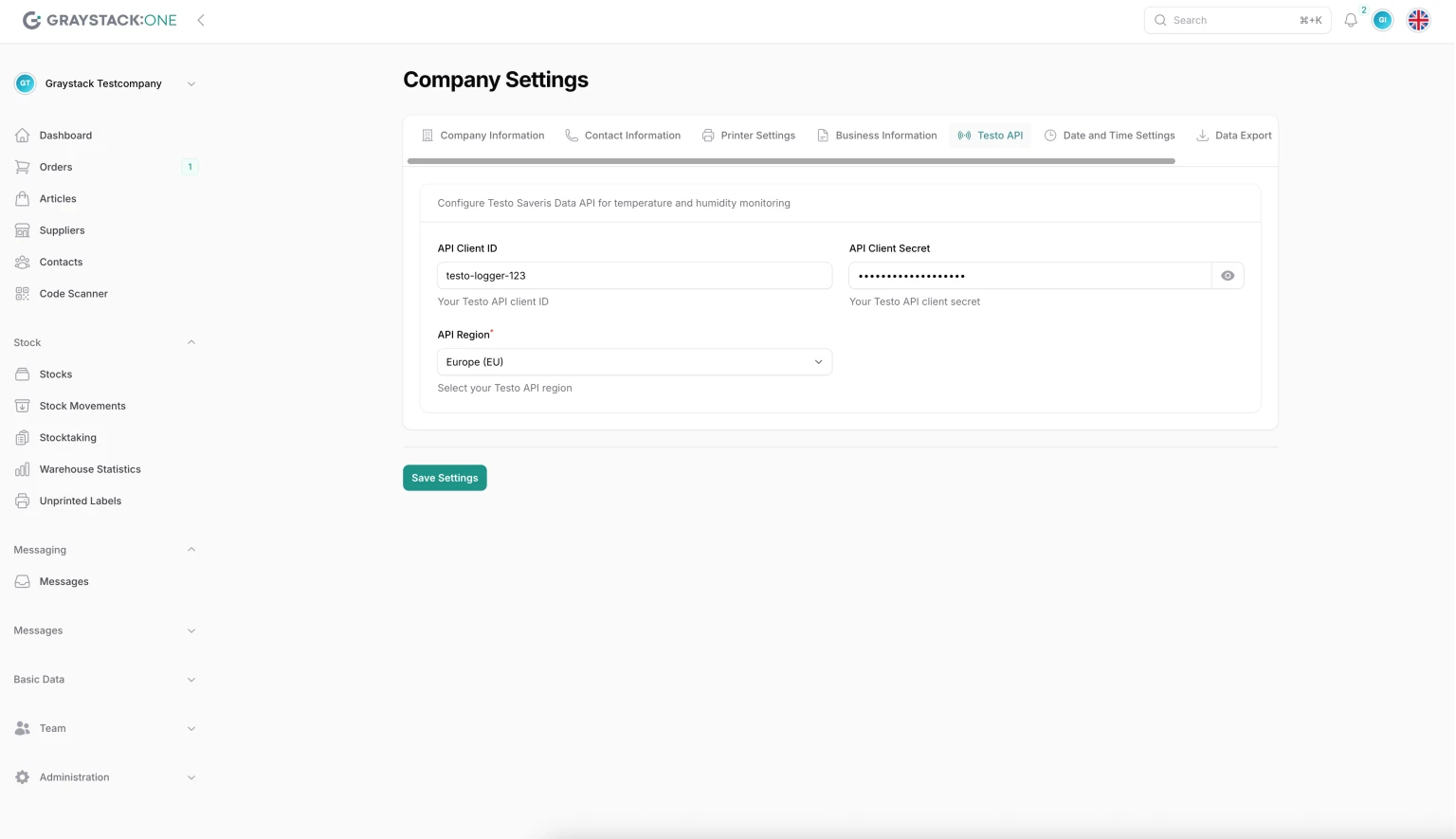
Navigate to the "Testo API" tab. Enter your API client ID and API client secret that you received from Testo. Select the appropriate API region and click "Save Settings."
Step 3: Select storage location
Go to "Stocks" in the left menu and select the storage location for which you want to configure the logger. Click "Edit" to edit the storage information.
Step 4: Configure test logger
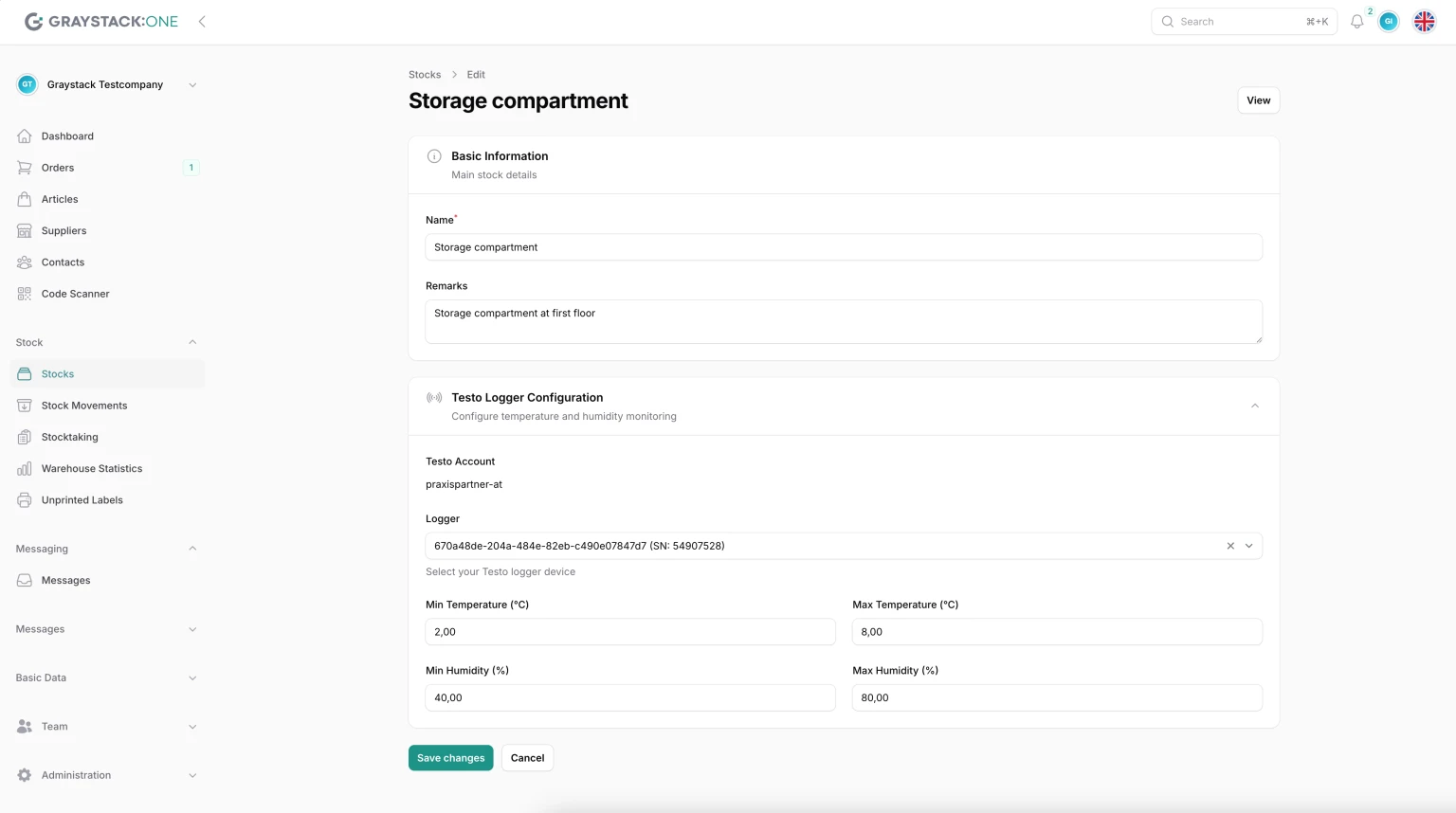
Scroll to the "Testo Logger Configuration" section. Select the desired logger from the drop-down menu. Set the minimum and maximum values for temperature and humidity. Click "Save changes" to complete the configuration.
The internal ID and serial number are displayed in the logger selection menu for easier identification.
Summary
By configuring the Test Logger in Graystack:One, you can efficiently monitor the environmental conditions in your storage rooms. Ensure that all API and logger settings are correct to achieve optimal results.
