Add/Edit User Roles
In Graystack:One, administrators can edit user roles to adjust access rights and responsibilities within the team. This article describes how to create new roles and edit existing ones.
What you will learn
How to find the role management menu.
How to create a new role.
How to add permissions to a role.
How to save and apply a role.
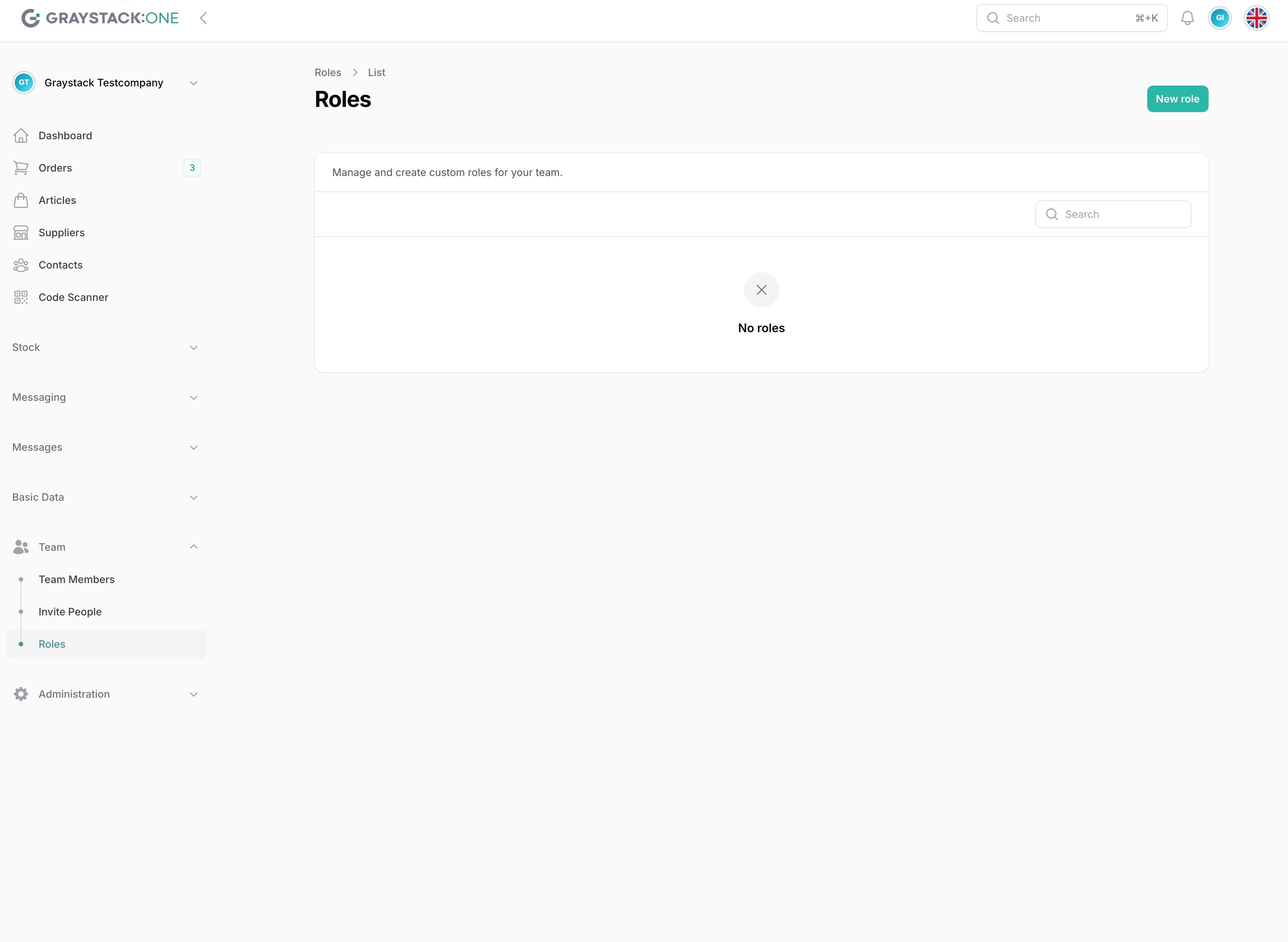
Step 1: Navigate to Role Management
Open Graystack:One and navigate to "Team" in the main menu, then to "Roles." This opens the role management panel where you can manage existing roles and create new ones.
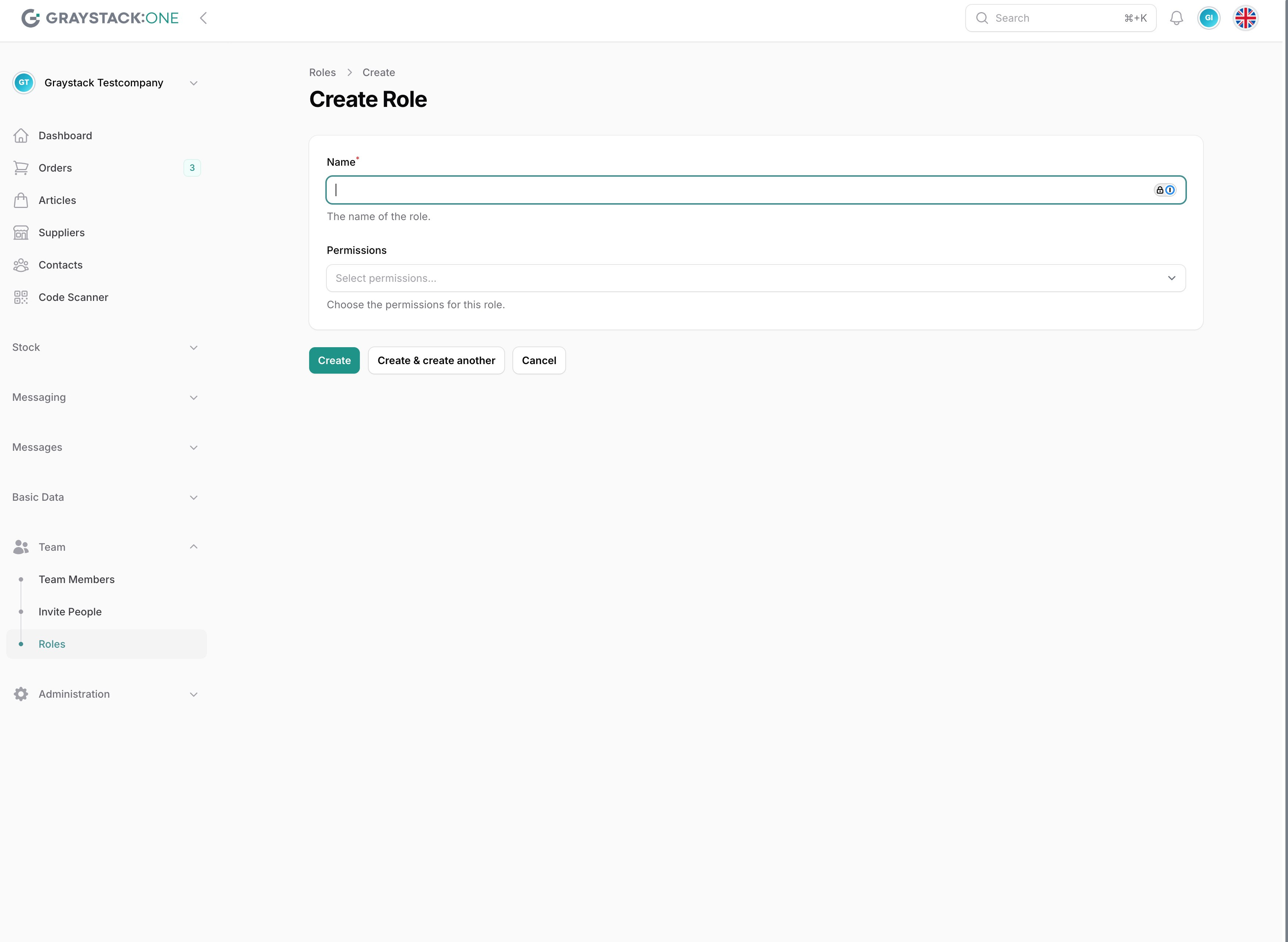
Step 2: Create a New Role
Click on the "New role" button to open the form to create a new role. Enter a name for the role for identification.
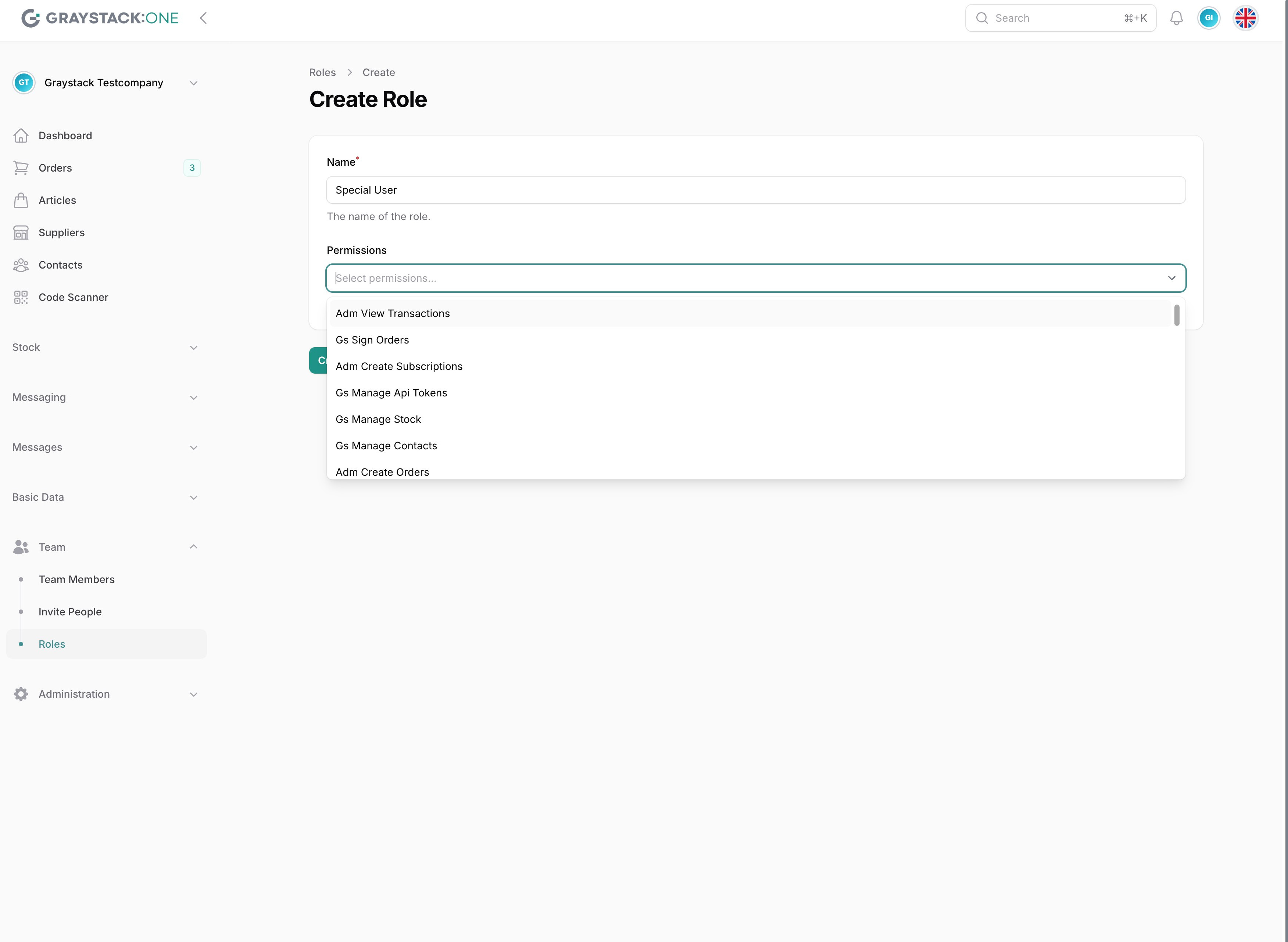
Step 3: Add Permissions
Select the desired permissions from the drop-down list. You can add multiple permissions to tailor the role to the specific needs of your team.
All permissions starting with "GS" are for standard users. Permissions starting with "ADM" are reserved for administrative activities such as subscription management, etc.
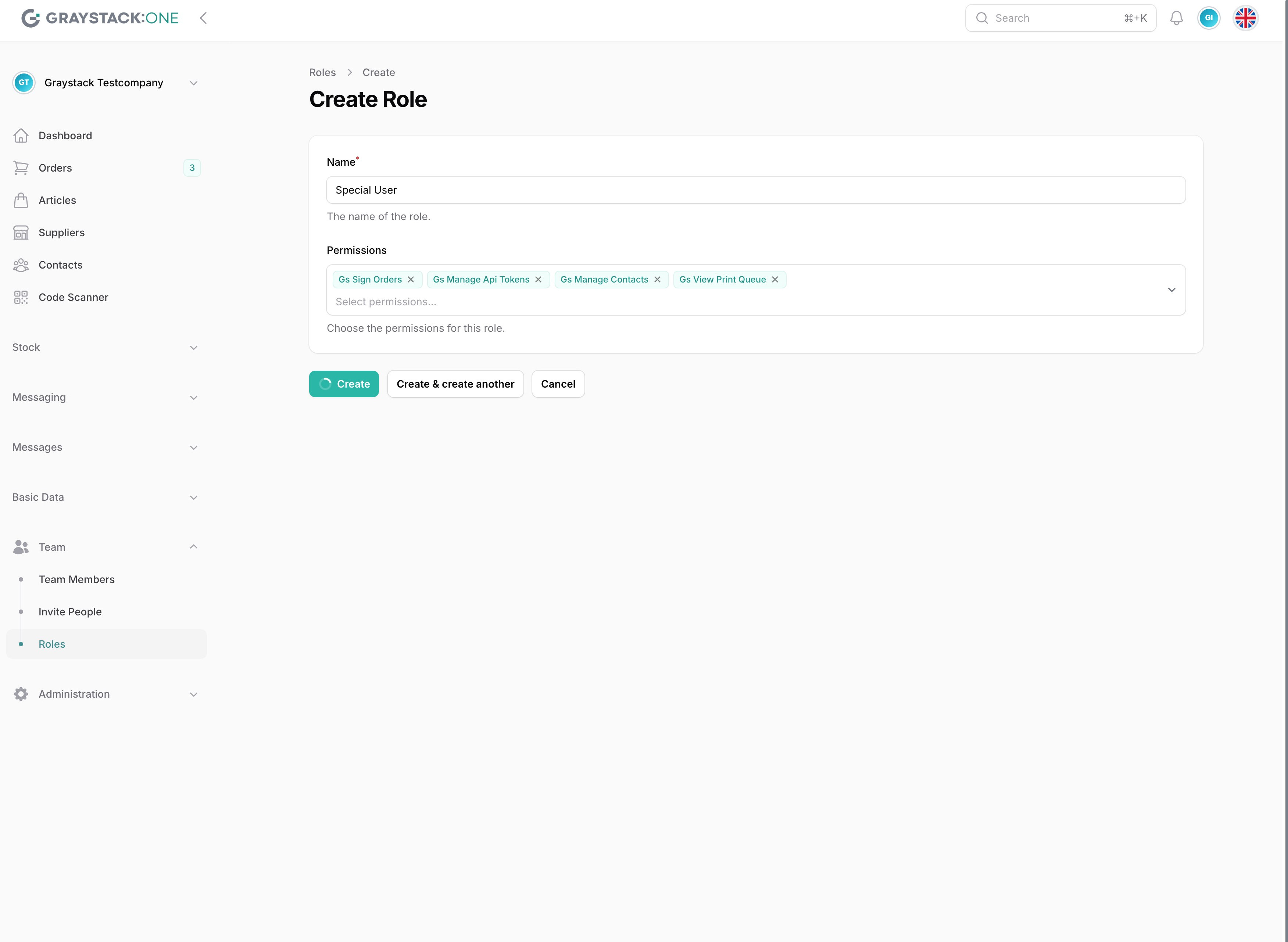
Step 4: Save and Apply
After entering all the necessary information, click "Create" to save the new role. The role will now appear in the list of roles and can be assigned to users.