

Sign orders
In Graystack:One, you can efficiently manage and sign orders. This guide shows you how to sign orders yourself or request a signature from another user.
What you will learn
Navigate to the order overview
Selecting an order for processing
Signing the order yourself
Requesting a signature from another user
Navigating to the order overview
Open Graystack:One and select 'Orders' from the left-hand menu to go to the order overview.
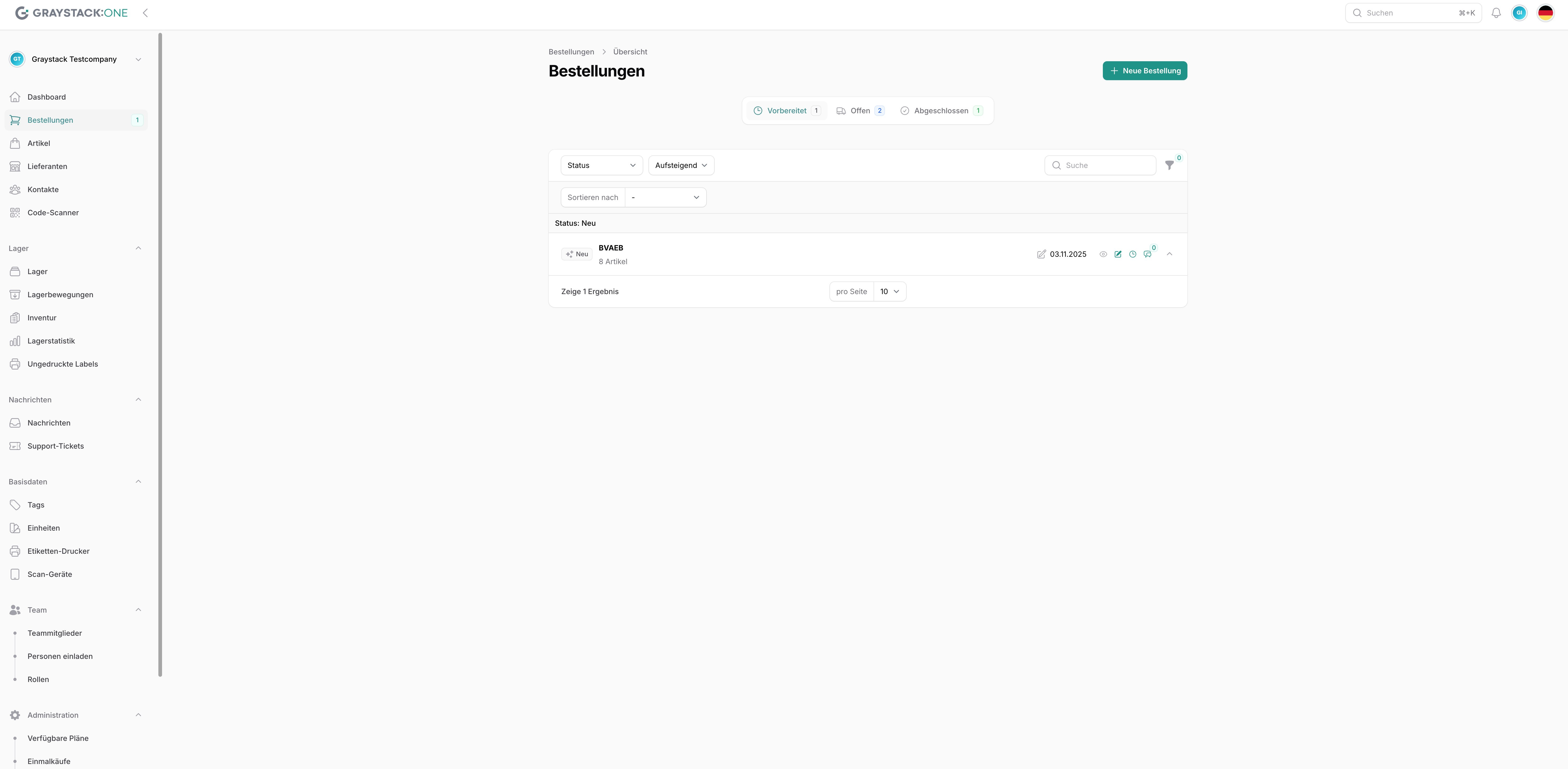
Select an order for processing
Click on the order you want to edit. This will open the order details.
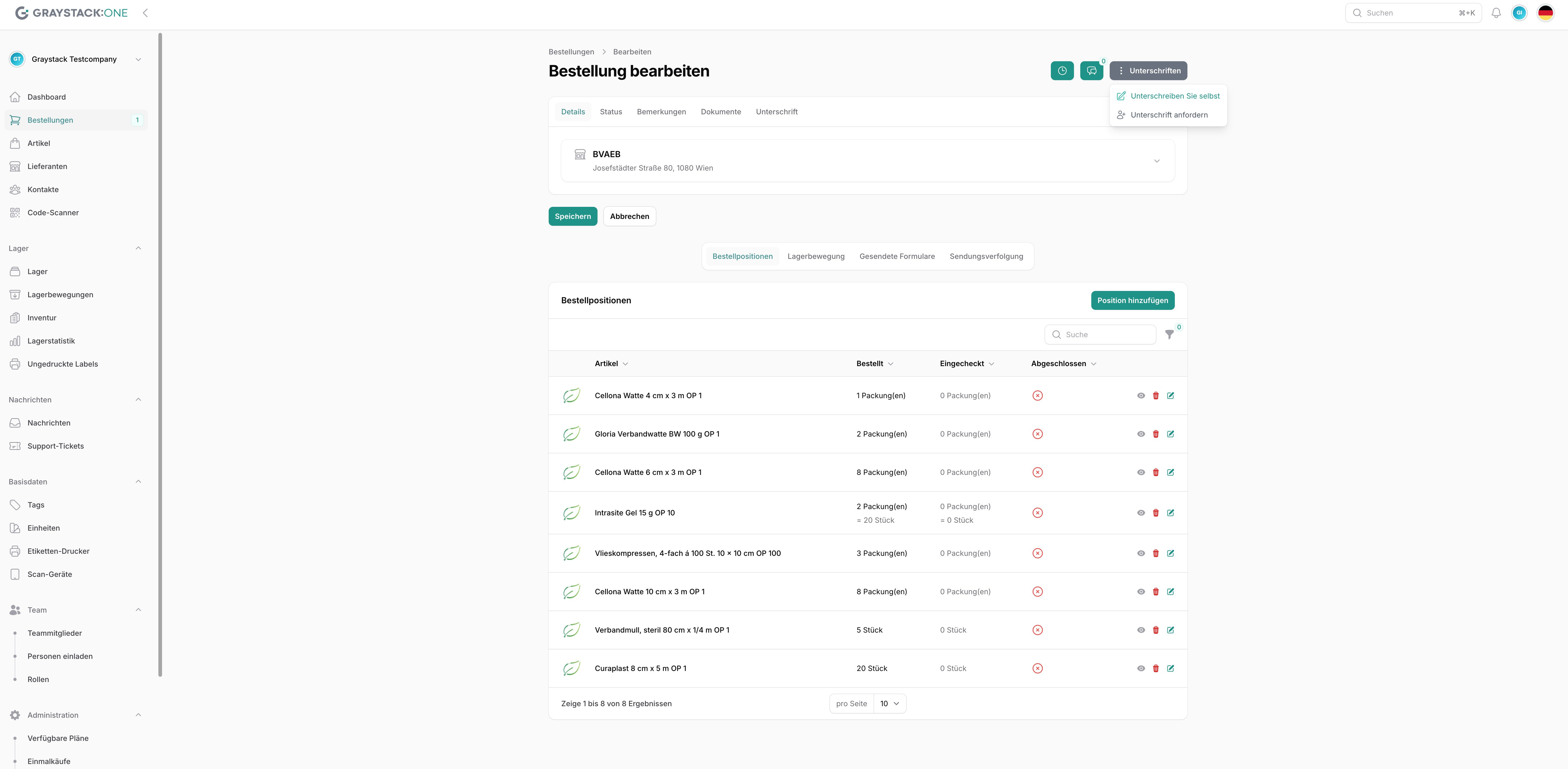 Edit order details Select image
Sign the order yourself
Click on the 'Signatures' button and select 'Sign yourself'. Enter your signature and click on 'Submit'.
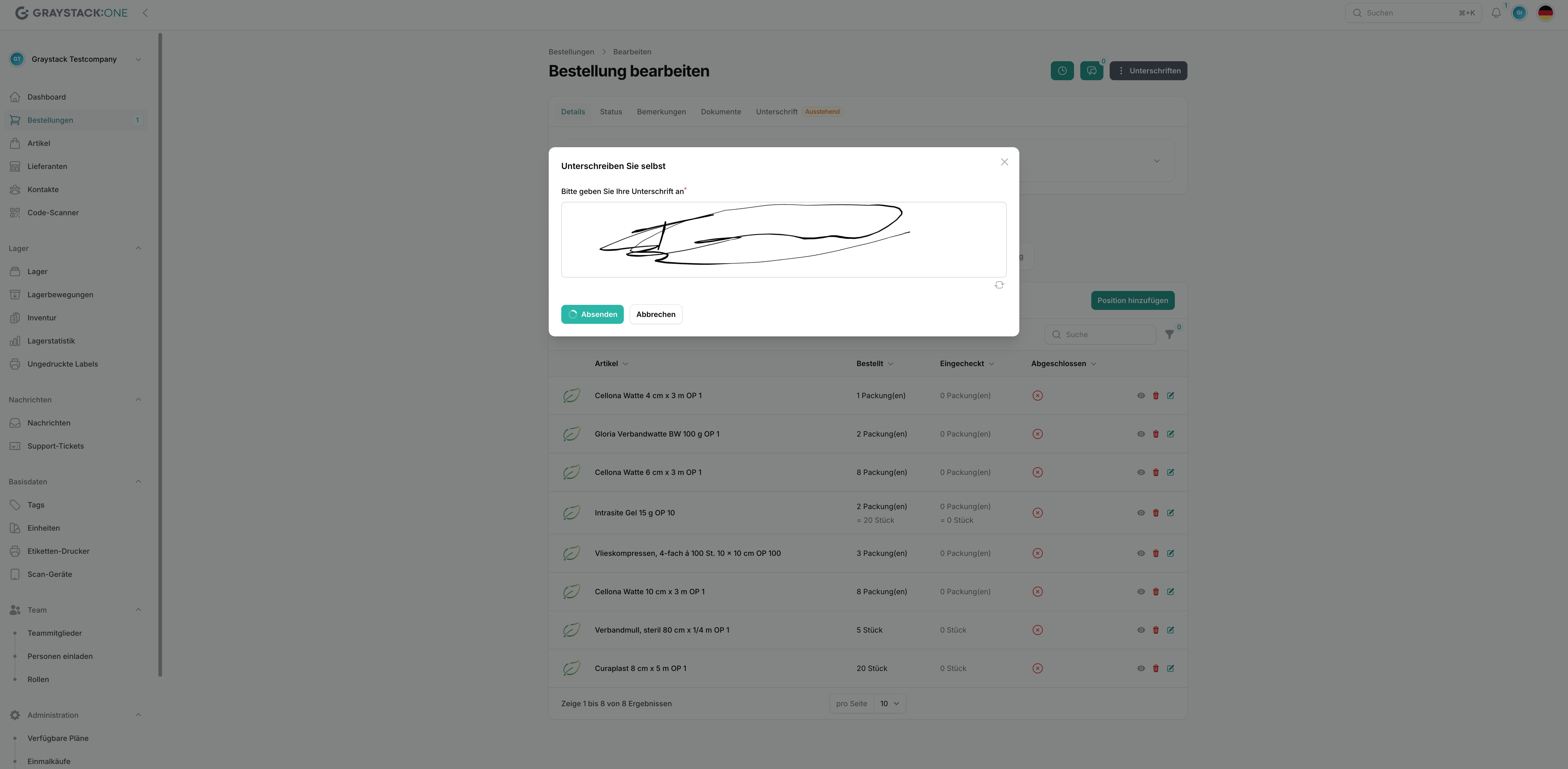 Enter signature Select image
Request signature from another user
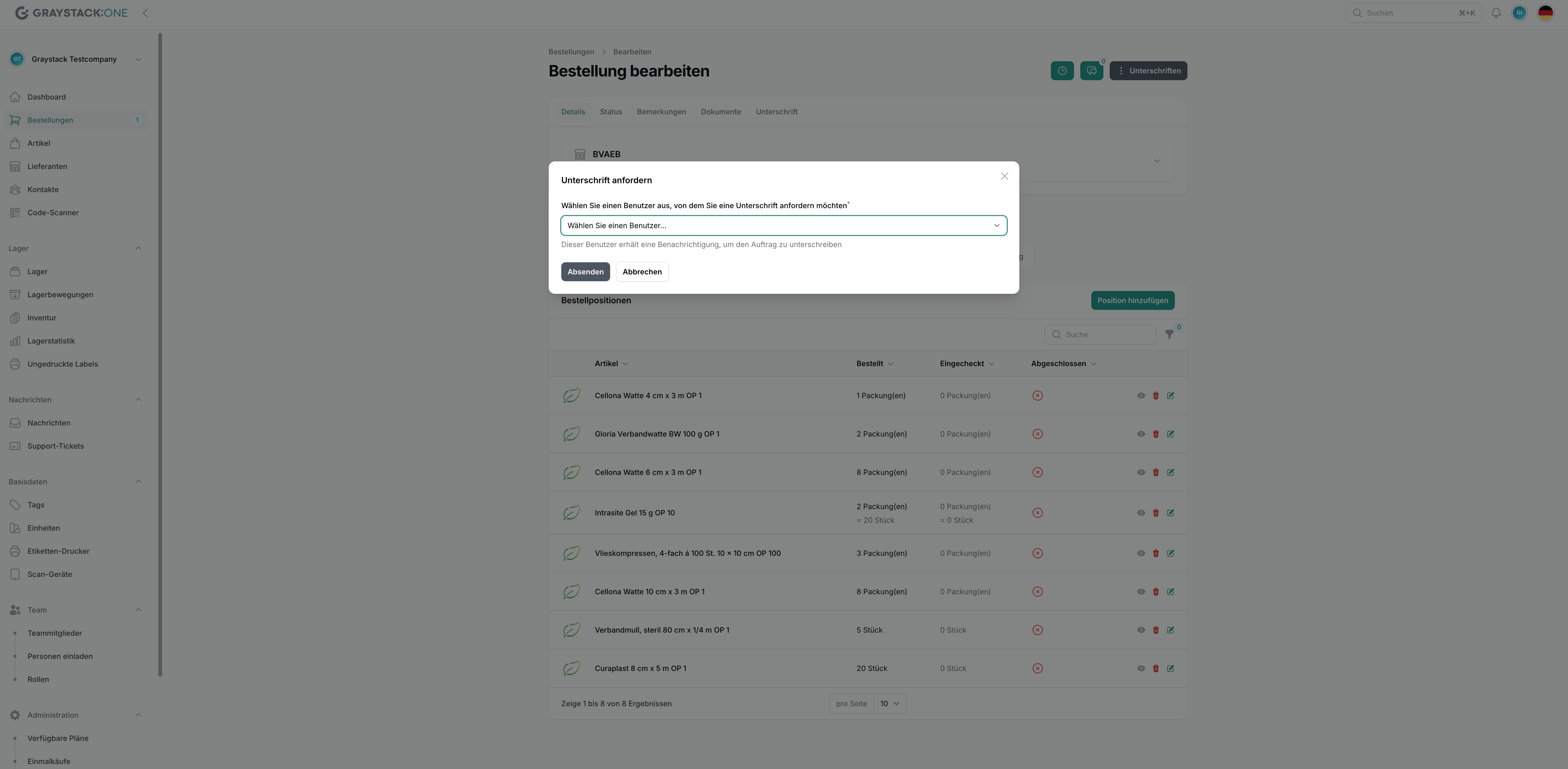
If you need a signature from another user, click on 'Signatures' and select 'Request signature'. Select the user from the list and send the request.
Withdraw signature requests
You can also withdraw signature requests that you have requested yourself. To do this, after making the request, go to the "Signatures" menu and select "Withdraw signature request."
If an order has been submitted to you for signature (i.e., another user has requested your signature), you can either sign the order or send it to another user, e.g., if another user is to sign the order instead of you.
If there is a signature request, this signature can only be signed by the respective user, unless they pass the signature on to another user.
Important: Orders that include a form that requires a signature can only be sent or marked as sent once a signature has been provided!
